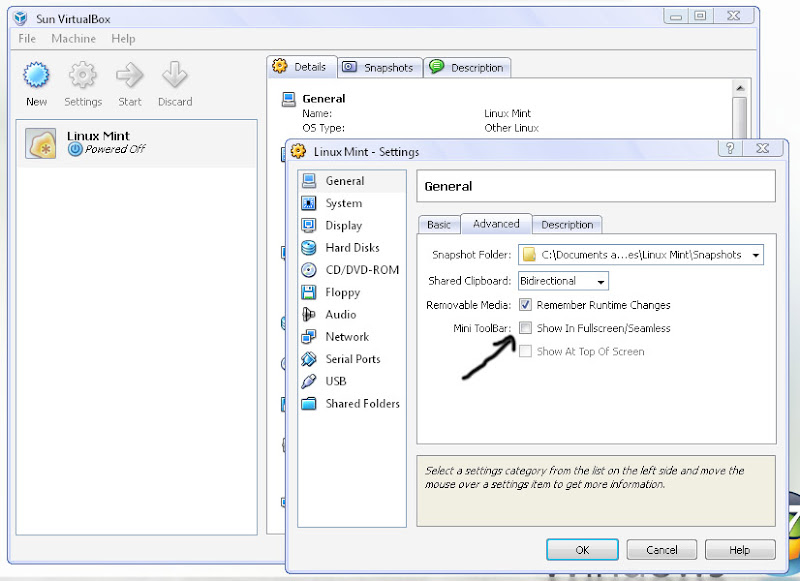
Do you think the Mini Toolbar that was appear at the bottom of the screen in VirtualBox is annoying you? And you want to know how to remove / disable it? Just simple steps to do. I give here example of Linux Mint in the VirtualBox, and the VirtualBox was installed in Windows XP. First shutdown Linux or whatever OS you run in VirtualBox. Then in the Sun VirtualBox window, click 'Setting' tab.
In Linux Mint Setting, click the general menu at the left side. Choose 'Advanced' tab. You can see Mini Toolbar option. Just untick the box 'Show in Fullscreen/Seamless. You are done :)
I hope you can solve the problem about How to disable Mini Toolbar in VirtualBox. This is because Mini Toolbar can give a bit choppy screen especially when our PC not too powerful enough and also annoy us when we mouse over the taskbar. Have nice days and all the best :)
I installed VirtualBox OSE couples days ago in my Linux Mint 7. Of course my purpose is to run another OS in this Linux OS and this time i try to run Windows XP as a virtual machine in it. Before i installed it i thought the virtual machine can read all partitions in my hard disk. Apparently, it can only read the virtual partition that i made at the installed process of Guest OS (Windows Xp) in VirtualBox.
So i must install all the Windows application that i want to use back in that Windows XP in the VirtualBox. It is rather i must install it from a cd / dvd, other removable devices or from the internet. If you want to connect to the internet inside that guest OS, you must first disconnect from Host OS (in this case Linux Mint 7 is the Host OS). I try to connect in the guest OS while in the Host OS is still connecting to the internet but it is not succeed. Maybe it cannot use 2 in 1 connection :D
And unfortunately to me, i set the partition size to this guest OS only 4.5GB. This because i thought it can read other partitions also before. So maybe i will create a New virtual machine again in that VirtualBox, set the partition with larger size that will suit my work in a future, and delete present Virtual machine (guest OS). The snapshot below is the image of My Computer inside the present virtual machine (Windows XP).
Look at the size of C drive, only 4.5GB :D And that virtual machine is inside the windows that can be resized and also can view in fullscreen when we press key CTRL + F. We can set whether to press left CTRL or right CTRL, depends on which is more confortable to us.
The default setting is we must press CTRL key before we can navigate inside the virtual machine and press CTRL again to go out and navigate in Linux again. But there is an easy way that we don't have to do that. Just install Guest additions (option under the Device menu) and it will install the virtual cd inside the virtual machine and we don't have to press CTRL anymore if we want to work in the virtual machine or out of it. And the screen size also enhanced, it will fit the windows when we resize and will full on the screen when we toggle to fullscreen. Below is the snapshots of before using Guest additions and after using it;
Winxp fullscreen before installing Guest additions - a bit like this
Winxp fullscreen after installing Guest additions
Until here for this time, i don't know if i will use this way or not later on because this will use more space in hard disk and quite fussy of course. Maybe i will just using dual boot like before. All the best :)
It's almost time to upgrade Linux Ubuntu from 8.04 to 8.10. The Beta version is available now but only good for testing. Ubuntu team advise to not install it on production machines because the final stable version will be released on October 30th, 2008. We must be patient if we want satisfaction.
You can download from the official website of Ubuntu or if you want to upgrade from Ubuntu 8.04, press Alt+F2 and type in "update-manager -d" (without the quotes) into the command box. Update Manager should open up and tell you: New distribution release '8.10' is available. Click Upgrade and follow the on-screen instructions.
There are many new features and bug-fixes in this new version of Ubuntu. We hope that it will become more stable than just now and support more activity especially related with graphic issue, especially support the latest graphic card to work smooth with the effects.
There are so many effects can be set in Linux Ubuntu. And this time i wanna share about effects and animations using Compiz Fusion in Linux Ubuntu. And we concentrate on close, open and minimize application. I try all of them and they are so cute and stunning. But first of all, let us see the command to install Compiz Fusion in our Linux.
Type the above code in Terminal. Don't know how to open Terminal? Here is the path
Click Applications - Accessories, then Terminal
After installed Compiz Fusion, go to System - Preferences - Advanced Desktop Effects Settings and go to the Animations plugin. You can play around with the different animations and find your own favourite.
The list of close , open and minimize window application effects and animations is ;
My favourite is Burn. The effect is like burning fire and i prefer to use it for closing the application. The fire effect burns the application's window from up to down until it vanish.
For example here, if you want to set effect to minimize animation, go to Effects in Compiz Config Setting Manager.
Tick animations. Then click the word Animations to enter the setting.
- Click Minimize animation - Click New button. - Choose your minimize effect - Don't forget to put in Window Match the code below
You can get this code in the previous effect setting that was already there. Remember to copy all of them and paste at once. Without the code, nothing will happen.
- Put your newer effect at the top in the list of effects. This can be done by select that new effect and click Up button. - And your effect is ready to work. Try minimize and maximize your application.
But remember to activate dekstop effect first before applying all these effects or they may not working. To activate dekstop effect;
- Right click on the Desktop - Choose Change Desktop Background - Click Visual Effects tab. - Click radio button whether it is Normal or Extra, depends on your needs.
Learning Linux is quite hard but fun. Learning with reading is quite difficult to understand. Thanx to these videos from Youtube that make learning the basic of linux commands easier than ever. All the best :)
Basic Linux Commands
Ubuntu Linux Tutorial Chapt12.Introduction to the Terminal 1
Ubuntu Linux Tutorial Chapt12.Introduction to the Terminal 2
Ubuntu Linux Tutorial Chapt12.Introduction to the Terminal 3
Ubuntu Linux Tutorial Chapt12.Introduction to the Terminal 4
Ubuntu Linux Tutorial Chapt12.Introduction to the Terminal 5
Ubuntu Linux Tutorial Chapt12.Introduction to the Terminal 6
Ubuntu Linux Tutorial Chapt12.Introduction to the Terminal 7
Terminal basics for Linux Part 1 (Ubuntu 7.10 here)
Maybe it's so late for me to equip my PC with Linux but whatever i succeed installed Linux Ubuntu 8.04 - The Hardy Heron , that was released in April 2008. It is quite fussy to install it and far more harder than installing Windows. I installed it within Windows XP after downloaded the .iso free file from ubuntu.com . And what is my guide? I just read writings on the internet as my guidance.
Seriously, i don't ever learn Linux from somewhere else before. And i don't ever watch somebody use Linux. All i did before i installed Linux Ubuntu yesterday is reading on the internet and try and error yesterday. So what i can tell here is, installing Linux is not so hard anymore.
So my PC now has 2 Operating System (OS), and i can choose which one at the boot process when it display OS choice. Ubuntu 8.04 load faster than my Windows XP, i can feel the different obviously. I was satisfied so far with Linux Ubuntu even though there are still lots of lackness and so fussy to handle. I think this is usual for a newbie and i hope i will become better and better and get used to it.
There are still many tasks that we must use keyboard typing especially when we want to install programs. Not like Windows, usually we must type the commands when we want to install programs in Ubuntu (but we can also install directly with double click the setup icon, most of them). Windows is user friendly about this matter, only it cannot be compared with Linux because Linux is FREE but Windows is a commercial product. So i think, we cannot blame Linux because of still not so user friendly because it is an open source program and is FREE to use.
But it is an advantage too why we must type commands before install the programs like this. Maybe it's because of the security reason. It is more safer to act manually of many things and can avoid from virus attack. Haaaa, one thing for sure, i don't have to install Antivirus in Linux. It has its own protection from viruses and malwares in its own way. I still cannot explain how but i think i understand a bit of it. Maybe after i fully understand of it, i will write again in this blog someday. Whatever, you can still install antivirus for linux version into Linux.
We don't have to be so afraid with the codes because usually, the website that provide the program that you want to install will provide the codes too. So we just type what they gave, and usually it is just a short and easy to remember codes.
And for more protection, Linux will always ask you for a security password. The password that had been asked you to create at the beginning of the Linux installation. Maybe this is not comfortable for certain people, but this is a good way in protecting your PC from viruses and malwares attack, actually.
Surfing the internet is faster in Linux than surfing in Windows XP. It is my own personal experience, maybe it is different with other people experience.
And what is really interesting with Linux Ubuntu is the effects. There are many effects in their desktop and after installing Compiz Fusion, Beryl or whatever effects manager, the Linux desktop is full with animation and cool effects. My favourite is Desktop Cube effect, where the destop can be switch to 4 and we can change and rotate the desktop in cube formation. You can see the example of the animation and effects in the video below;
Ubuntu 8.04 - Hardy Heron + Compiz Fusion
There are a few problems that i encountered after using Linux in these 2 days. My first problem is related to graphic card. I found out that my Nvidia GeForce 8500GT graphic card is still not support with the effects in Linux Ubuntu 8.04. The effects can be executed but the resolution is just at 640 x 480, and cannot be adjust to higher resolution. I searched in the net, and found out that Nvidia still not produce driver for GeForce 8500GT that support Linux Ubuntu 8.04.
So for now, i just can use the built in VGA, ATI Radeon Xpress 1250. So clearly there that a new Linux still is not a good OS for the latest graphic card. Maybe PC Gamers will not make Linux as a good choice for their OS.
And there are couples more small problems that i think it's because of i'm still new to it. And i will tell about Linux next time insyaAllah when i have opportunity. That's all for now about my experience of using Linux Ubuntu 8.04 in just 2 days. Still new and fresh to tell more. Have a nice days ahead and all the best :)


 Do you think the Mini Toolbar that was appear at the bottom of the screen in VirtualBox is annoying you? And you want to know how to remove / disable it? Just simple steps to do. I give here example of Linux Mint in the VirtualBox, and the VirtualBox was installed in Windows XP. First shutdown Linux or whatever OS you run in VirtualBox. Then in the Sun VirtualBox window, click 'Setting' tab.